> ## Documentation Index
> Fetch the complete documentation index at: https://docs.beam.cloud/llms.txt
> Use this file to discover all available pages before exploring further.
# Host a Web Service
[`Pod`](/v2/reference/py-sdk#pod) provides a way to run serverless containers on the cloud. It enables you to quickly launch a container as an HTTPS server that you can access from a web browser.
Pods run in isolated containers, allowing you to run untrusted code safely from your host system.
This can be used for a variety of use cases, such as:
* Hosting GUIs, like Jupyter Notebooks, Streamlit or Reflex apps, and ComfyUI
* Testing code in an isolated environment as part of a CI/CD pipeline
* Securely executing code generated by LLMs
...and much more (if you've got a cool use case, [let us know!](https://join.slack.com/t/beam-cloud/shared_invite/zt-3enuvj3r7-OeAzVPYvyqQHy9avNrLL0w))
# Launching Cloud Containers
Containers can be launched programmatically through the Python SDK, or with the Beam CLI.
For example, the following code is used to launch a cloud-hosted Jupyter Notebook:
```python Python theme={null}
from beam import Image, Pod
notebook = Pod(
image=Image(base_image="jupyter/base-notebook:latest"),
ports=[8888],
cpu=1,
memory=1024,
env={
"NOTEBOOK_ARGS": "--ip='' --NotebookApp.token='' --NotebookApp.notebook_dir=/tmp"
},
entrypoint=["start-notebook.py"],
)
nb = notebook.create()
print("Container hosted at:", nb.url)
```
```shell CLI theme={null}
beam run --image jupyter/base-notebook:latest --ports 8888 \
--env NOTEBOOK_ARGS="--ip='' --NotebookApp.token='' --NotebookApp.notebook_dir=/tmp" \
--entrypoint "start-notebook.py"
```
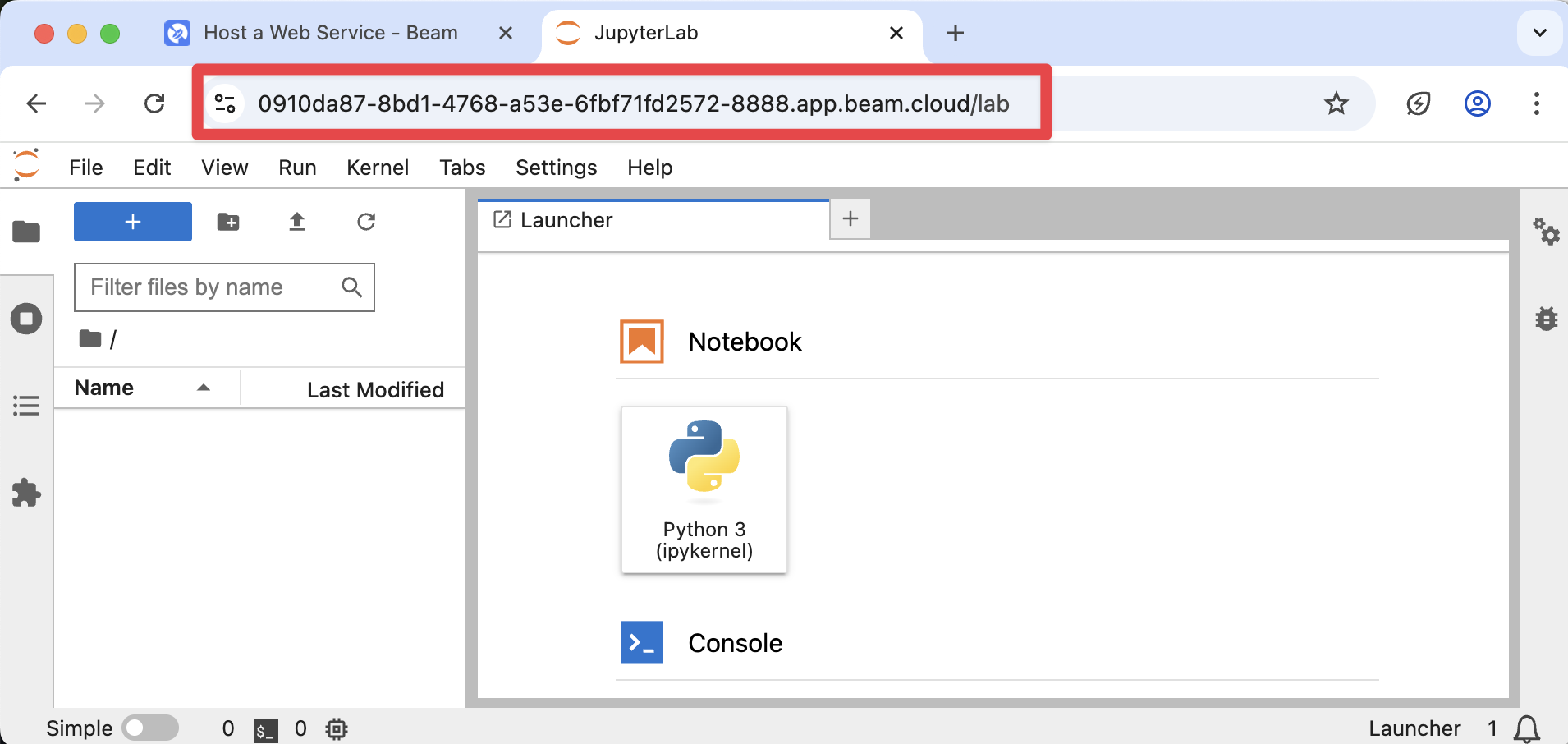
When this code is executed, Beam will launch a container and expose it as a publicly available HTTPS server:
```
$ python app.py
=> Building image
=> Using cached image
=> Syncing files
=> Creating container
=> Container created successfully ===> pod-2929b184-b445-4f23-abc6-7c4b151001da-ec86d9ac
Container hosted at: https://2929b184-b445-4f23-abc6-7c4b151001da-8888.app.beam.cloud
```
### Accessing Containers via HTTP
You can then enter this URL in the browser to interact with your hosted container instance:
 ### Securely Executing Untrusted Code
Beam's containers are launched in isolated environments from your host system, making it safe to execute untrusted or LLM-generated code.
## Parameters
Pods can be heavily customized to fit your needs.
### Using Custom Images
You can customize the container image using the [`Image`](/v2/reference/py-sdk#image) object. This can be customized with Python packages, shell commands, Conda packages, and much more.
```python Python theme={null}
from beam import Image, Pod
pod = Pod(
image=Image(base_image="jupyter/base-notebook:latest"),
entrypoint=["start-notebook.py"],
)
```
```shell CLI theme={null}
beam run --image jupyter/base-notebook:latest --entrypoint "start-notebook.py"
```
### Specifying Entry Points
An *entry point* is the command or script that will run when the container starts. You can interact with Pods using the CLI or the Python SDK.
```python Python theme={null}
from beam import Image, Pod
pod = Pod(
image=Image(base_image="jupyter/base-notebook:latest"),
entrypoint=["start-notebook.py"],
)
pod.create()
```
```shell CLI theme={null}
beam run \
--image jupyter/base-notebook:latest \
--entrypoint "start-notebook.py"
```
### Passing Environment Variables
You can pass environment variables into your container for credentials or other parameters. Like entry points, environment variables can be defined in both the CLI or the Python SDK:
```python Python theme={null}
from beam import Image, Pod
Pod(
image=Image(base_image="jupyter/base-notebook:latest"),
env={"NOTEBOOK_ARGS": "--ip='' --NotebookApp.token='' --NotebookApp.notebook_dir=/tmp"},
entrypoint=["start-notebook.py"],
)
```
```shell CLI theme={null}
beam run \
--image jupyter/base-notebook:latest \
--env NOTEBOOK_ARGS="--ip='' --NotebookApp.token='' --NotebookApp.notebook_dir=/tmp" \
--entrypoint "start-notebook.py"
```
## Deploying a Pod
Pods can be deployed as persistent endpoints using the `beam deploy` command.
When deploying a Pod, don't forget to include the `name` field.
```python app.py theme={null}
from beam import Pod
pod = Pod(
name="my-deployed-pod",
cpu=2,
memory="1Gi",
ports=[8000],
entrypoint=["python", "-m", "http.server", "8000"],
)
```
```sh theme={null}
beam deploy app.py:pod
```
## Terminating a Pod
Pod instances can be terminated directly using the `terminate()` method.
Alternatively, you can terminate the container the Pod is running on by using the `beam container stop ` command.
```python theme={null}
from beam import Pod
# Initialize a pod
notebook = Pod()
# Launch the pod
notebook.create()
# Terminate the pod
notebook.terminate()
```
## Lifecycle
### Timeouts
Pods are serverless and automatically scale-to-zero.
By default, pods will be terminated after 10 minutes without any active connections to the hosted URL or until the process exits by itself. Making a connection request (i.e. accessing the URL in your browser) will keep the container alive until the timeout is reached.
You can set a custom timeout by passing the `keep-warm-seconds` parameter when creating a pod. By specifying -1, the pod will not spin down to due inactivity, and will remain up until either the entrypoint process exits, or you explicitly stop the container.
**Keep Alive for 5 minutes**
```python theme={null}
beam run --image jupyter/base-notebook:latest --keep-warm-seconds 300
```
**Keep Alive Indefinitely**
*There is no upper limit on the duration of a session*.
```python theme={null}
beam run --image jupyter/base-notebook:latest --keep-warm-seconds -1
```
### List Running Pods
You can list all running Pods using the `beam container list` command.
```bash theme={null}
$ beam container list
ID Status Stub ID Deployment ID Scheduled At Uptime
────────────────────────────────────────────────────────────────────────────────────────────────────────────────────────────────────────────────
pod-58a38dba-8b7b-4db3-b002-436c6d9b4858-a613eecd RUNNING 58a38dba-8b7b-4db3-b002-436c6d9b4858 5 seconds ago 4 seconds
1 items
```
You can kill any container by running `beam container stop `.
### Securely Executing Untrusted Code
Beam's containers are launched in isolated environments from your host system, making it safe to execute untrusted or LLM-generated code.
## Parameters
Pods can be heavily customized to fit your needs.
### Using Custom Images
You can customize the container image using the [`Image`](/v2/reference/py-sdk#image) object. This can be customized with Python packages, shell commands, Conda packages, and much more.
```python Python theme={null}
from beam import Image, Pod
pod = Pod(
image=Image(base_image="jupyter/base-notebook:latest"),
entrypoint=["start-notebook.py"],
)
```
```shell CLI theme={null}
beam run --image jupyter/base-notebook:latest --entrypoint "start-notebook.py"
```
### Specifying Entry Points
An *entry point* is the command or script that will run when the container starts. You can interact with Pods using the CLI or the Python SDK.
```python Python theme={null}
from beam import Image, Pod
pod = Pod(
image=Image(base_image="jupyter/base-notebook:latest"),
entrypoint=["start-notebook.py"],
)
pod.create()
```
```shell CLI theme={null}
beam run \
--image jupyter/base-notebook:latest \
--entrypoint "start-notebook.py"
```
### Passing Environment Variables
You can pass environment variables into your container for credentials or other parameters. Like entry points, environment variables can be defined in both the CLI or the Python SDK:
```python Python theme={null}
from beam import Image, Pod
Pod(
image=Image(base_image="jupyter/base-notebook:latest"),
env={"NOTEBOOK_ARGS": "--ip='' --NotebookApp.token='' --NotebookApp.notebook_dir=/tmp"},
entrypoint=["start-notebook.py"],
)
```
```shell CLI theme={null}
beam run \
--image jupyter/base-notebook:latest \
--env NOTEBOOK_ARGS="--ip='' --NotebookApp.token='' --NotebookApp.notebook_dir=/tmp" \
--entrypoint "start-notebook.py"
```
## Deploying a Pod
Pods can be deployed as persistent endpoints using the `beam deploy` command.
When deploying a Pod, don't forget to include the `name` field.
```python app.py theme={null}
from beam import Pod
pod = Pod(
name="my-deployed-pod",
cpu=2,
memory="1Gi",
ports=[8000],
entrypoint=["python", "-m", "http.server", "8000"],
)
```
```sh theme={null}
beam deploy app.py:pod
```
## Terminating a Pod
Pod instances can be terminated directly using the `terminate()` method.
Alternatively, you can terminate the container the Pod is running on by using the `beam container stop ` command.
```python theme={null}
from beam import Pod
# Initialize a pod
notebook = Pod()
# Launch the pod
notebook.create()
# Terminate the pod
notebook.terminate()
```
## Lifecycle
### Timeouts
Pods are serverless and automatically scale-to-zero.
By default, pods will be terminated after 10 minutes without any active connections to the hosted URL or until the process exits by itself. Making a connection request (i.e. accessing the URL in your browser) will keep the container alive until the timeout is reached.
You can set a custom timeout by passing the `keep-warm-seconds` parameter when creating a pod. By specifying -1, the pod will not spin down to due inactivity, and will remain up until either the entrypoint process exits, or you explicitly stop the container.
**Keep Alive for 5 minutes**
```python theme={null}
beam run --image jupyter/base-notebook:latest --keep-warm-seconds 300
```
**Keep Alive Indefinitely**
*There is no upper limit on the duration of a session*.
```python theme={null}
beam run --image jupyter/base-notebook:latest --keep-warm-seconds -1
```
### List Running Pods
You can list all running Pods using the `beam container list` command.
```bash theme={null}
$ beam container list
ID Status Stub ID Deployment ID Scheduled At Uptime
────────────────────────────────────────────────────────────────────────────────────────────────────────────────────────────────────────────────
pod-58a38dba-8b7b-4db3-b002-436c6d9b4858-a613eecd RUNNING 58a38dba-8b7b-4db3-b002-436c6d9b4858 5 seconds ago 4 seconds
1 items
```
You can kill any container by running `beam container stop `.