> ## Documentation Index
> Fetch the complete documentation index at: https://docs.beam.cloud/llms.txt
> Use this file to discover all available pages before exploring further.
# Hugging Face Models
> A beginner's guide to running highly performant inference workloads on Beam.
This tutorial introduces several key concepts:
* Creating a container image
* Running a custom ML model
* Developing your app using Beam's live reloading workflow
* Pre-loading models and caching them in storage volumes
* Autoscaling and concurrency
See the code for this example on Github.
## Setup your app
You'll start by adding an `endpoint` decorator with an [`Image`](/v2/reference/py-sdk#image)
* `Endpoint` is the wrapper for your inference function.
* Inside the `endpoint` is an `Image`. The `Image` defines the image your container will run on.
If you'd like to make further customizations to your image -- such as adding
shell commands -- you can do so using the `commands` argument. [Read more
about custom images.](/v2/environment/custom-images)
```python theme={null}
from beam import Image, endpoint
@endpoint(
name="inference-quickstart",
cpu=1,
memory="16Gi",
gpu="T4",
image=Image(python_version="python3.9")
.add_python_packages(["transformers", "torch", "huggingface_hub[hf-transfer]"])
.with_envs("HF_HUB_ENABLE_HF_TRANSFER=1"),
)
```
## Remote vs. Local Environment
Typically, your apps that run on Beam will be using packages that you don't have installed locally.
Some of our Python packages aren't installed locally -- like Transformers -- so we'll use a special flag called `env.is_remote()` to conditionally import packages only when inside the remote cloud environment.
```python theme={null}
from beam import env
if env.is_remote():
import transformers
import torch
```
This command checks whether the Python script is running remotely on Beam, and will only try to import the packages in its scope if it is.
## Running a custom ML model
We'll create a new function to run inference on `facebook/opt-125m` via Huggingface Transformers.
Since we'll deploy this as a REST API, we add an `@endpoint` decorator above the inference function:
```python theme={null}
from beam import Image, endpoint, env
if env.is_remote():
from transformers import AutoTokenizer, OPTForCausalLM
import torch
@endpoint(
name="inference-quickstart",
cpu=1,
memory="16Gi",
gpu="T4",
image=Image(python_version="python3.9")
.add_python_packages(["transformers", "torch", "huggingface_hub[hf-transfer]"])
.with_envs("HF_HUB_ENABLE_HF_TRANSFER=1"),
)
def predict(prompt):
model = OPTForCausalLM.from_pretrained("facebook/opt-125m")
tokenizer = AutoTokenizer.from_pretrained("facebook/opt-125m")
# Generate
inputs = tokenizer(prompt, return_tensors="pt")
generate_ids = model.generate(inputs.input_ids, max_length=30)
result = tokenizer.batch_decode(
generate_ids, skip_special_tokens=True, clean_up_tokenization_spaces=False
)[0]
print(result)
return {"prediction": result}
```
## Developing your app on Beam
Beam includes a live-reloading feature that allows you to run your code on the same environment you'll be running in production.
By default, Beam will sync all the files in your working directory to the
remote container. This allows you to use the files you have locally while
developing. If you want to prevent some files from getting uploaded, you can
create a [`.beamignore`](/v2/reference/cli#ignore-local-files).
In your shell, run `beam serve app.py:predict`. This will:
1. Spin up a container
2. Run it on a GPU
3. Print a cURL request to invoke the API
4. Stream the logs to your shell
You should keep this terminal window open while developing.
```sh theme={null}
(.venv) user@MacBook demo % beam serve app.py:predict
=> Building image
=> Using cached image
=> Syncing files
=> Invocation details
curl -X POST \
'https://app.beam.cloud/endpoint/id/bc55068e-b648-4dbc-9cb7-183e1789e011' \
-H 'Accept: */*' \
-H 'Accept-Encoding: gzip, deflate' \
-H 'Connection: keep-alive' \
-H 'Authorization: Bearer [YOUR_AUTH_TOKEN]' \
-H 'Content-Type: application/json' \
-d '{}'
=> Watching ./inference-app for changes...
```
Now, head back to your IDE, and change a line of code. Hit save.
If you look closely at the shell running `beam serve`, you'll notice the server reloading with your code changes.
You'll use this workflow anytime you're developing an app on Beam. Trust us -- it makes the development process uniquely fast and painless.
## Performance Optimizations
If you called the API via the cURL command, you'll notice that your model was downloaded each time you invoked the API.
In order to improve performance, we'll setup a function to pre-load your models and store them on disk between API calls.
### Pre-loading
Beam includes an `on_start` method, which you can pass to your function decorators. `on_start` is run exactly once when the container first starts:
The value of the `on_start` function can be retrieved from `context.on_start_value`:
```python theme={null}
from beam import Image, endpoint, env
if env.is_remote():
from transformers import AutoTokenizer, OPTForCausalLM
import torch
def download_models():
from transformers import AutoTokenizer, OPTForCausalLM
model = OPTForCausalLM.from_pretrained("facebook/opt-125m")
tokenizer = AutoTokenizer.from_pretrained("facebook/opt-125m")
return model, tokenizer
@endpoint(
name="inference-quickstart",
on_start=download_models,
image=Image(
python_version="python3.9",
python_packages=[
"transformers",
"torch",
],
),
)
def predict(context):
# Retrieve cached model from on_start function
model, tokenizer = context.on_start_value
# Do something with the model and tokenizer...
```
### Cache in a storage volume
The `on_start` method saves us from having to download the model multiple times, but we can avoid downloading the model entirely by caching it in a [Storage Volume](/v2/data/volume):
Beam allows you to create highly-available storage volumes that can be used across tasks. You might use volumes for things like storing model weights or large datasets.
```python theme={null}
from beam import Image, endpoint, Volume
# Model weights will be cached in this folder
CACHE_PATH = "./weights"
# This function runs once when the container first starts
def download_models():
from transformers import AutoTokenizer, OPTForCausalLM
model = OPTForCausalLM.from_pretrained("facebook/opt-125m", cache_dir=CACHE_PATH)
tokenizer = AutoTokenizer.from_pretrained("facebook/opt-125m", cache_dir=CACHE_PATH)
return model, tokenizer
@endpoint(
name="inference-quickstart",
on_start=download_models,
volumes=[Volume(name="weights", mount_path=CACHE_PATH)],
cpu=1,
memory="16Gi",
gpu="T4",
image=Image(
python_version="python3.9",
python_packages=[
"transformers",
"torch",
],
),
)
```
Now, these models can be automatically downloaded to the volume by using the `cache_dir` argument in transformers:
```python theme={null}
model = OPTForCausalLM.from_pretrained("facebook/opt-125m", cache_dir=CACHE_PATH)
tokenizer = AutoTokenizer.from_pretrained("facebook/opt-125m", cache_dir=CACHE_PATH)
```
These volumes are mounted directly to the container running your app, so you can read and write them to disk like any normal file.
## Configure Autoscaling (Optional)
You can control your autoscaling behavior with `QueueDepthAutoscaler`.
`QueueDepthAutoscaler` takes two parameters:
* `max_containers`
* `tasks_per_container`
```python theme={null}
from beam import endpoint, QueueDepthAutoscaler
@endpoint(autoscaler=QueueDepthAutoscaler(max_containers=5, tasks_per_container=1))
def function():
pass
```
## Deployment
With these performance optimizations in place, it's time to deploy your API to create a persistent endpoint. In your shell, run this command to deploy your app:
```sh theme={null}
beam deploy app.py:predict
```
## Monitoring Logs and Task Status
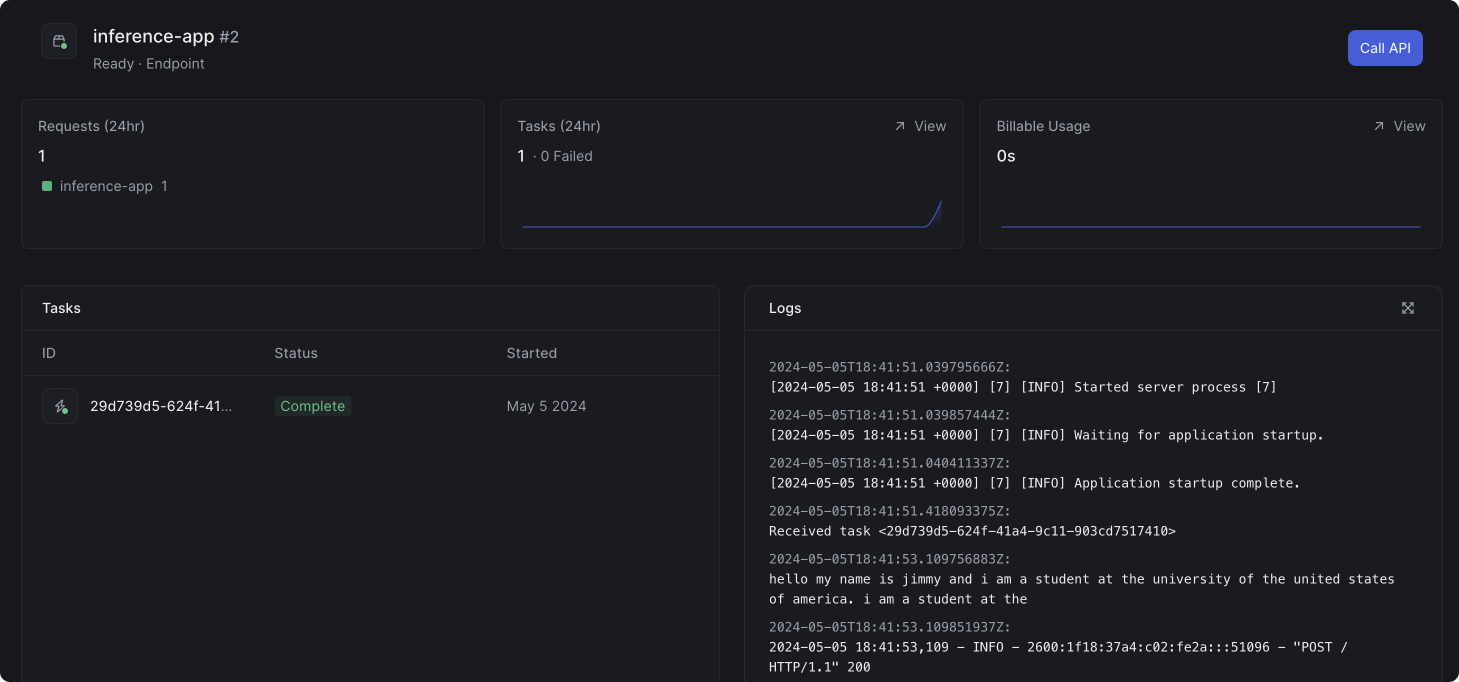
In the dashboard, you can view the status of the task and the logs from the container:
 ## Summary
You've successfully created a highly performant serverless API for your ML model!
## Summary
You've successfully created a highly performant serverless API for your ML model!